Ask Claude what the last message from your accountant was about, and the answer will tell you it has no access to your mail. Which is true. By default it hasn’t. A connector is that access: a ready-made link to another online service you already use. And a connector can be unplugged as easily as it was plugged in.
In this lesson you’ll set up two of them: Gmail and Google Calendar. You need an active Claude account for that. If you don’t have one yet, start with the lesson on setting up an account and come back here.
Where the connectors are in claude.ai
Connectors are switched on in the browser, at claude.ai – or in the Claude desktop app, where the settings look identical.
Open claude.ai, click your username in the bottom-left corner and choose Settings. Go to Customize, and inside it to Connectors.
Some connectors sit right there in the recommended list, and the rest appear once you click Discover.
You can also add one from the chat window. In the bottom-right corner of the field you type into, click the plus icon and pick Connectors → Add connector → Browse connectors.
The claude.ai interface and the desktop app change often, so your list of connectors may look a little different from ours. When you can’t find an option described here, ask Claude about it in a chat.
Connect Gmail
Find Gmail in the list of connectors and click Connect. A Google sign-in window opens and asks which account to use. Pick the one whose mailbox you want to connect.
You choose the account separately for each connector, and it doesn’t have to be the account you sign in to Claude with. Your mail can come from a work address and your calendar from a private one.
One connector, though, takes exactly one Google account.
After you pick the account, Google shows you a consent screen. Read it before you click through. Google spells out there what you are agreeing to, and running your eye down that list once beats scrolling past it out of habit. The consent covers sending messages too, because Claude can draft replies and send them from your mailbox.
Clearing any of the boxes on the consent screen has bigger consequences than it looks. Claude won’t get the matching tool, and you won’t find it afterwards even in the list of Gmail tools in the connector’s settings. Google’s consent screen comes back only when you disconnect the connector and connect it again.
So on Google’s consent screen we recommend ticking everything, and drawing the lines later, on Claude’s side, in the connector’s settings – tool permissions change there whenever you like, with one click.
Sending mail stays your decision anyway: by default, Claude asks before anything leaves your mailbox.
Decide what the connector is allowed to do
A connected connector isn’t the end of it, because which of its tools Claude actually reaches for is up to you. Go back to Customize → Connectors and click the connected Gmail – you’ll see a section called Tool permissions.
There are three levels: Always allow (Claude uses the tool without asking), Needs approval (it asks you every time) and Blocked (it won’t use the tool at all). A freshly connected connector starts with every tool on Needs approval, so until you change anything here, Claude asks you before each use. The switch at the top sets every tool in the connector at once, and below it each tool has its own row with the same three icons.
Expand that switch and you’ll see a fourth position, Custom. You can click it, and nothing happens – the switch moves there by itself when you give one tool a different level from the rest, and it means only that the tools no longer share one value.
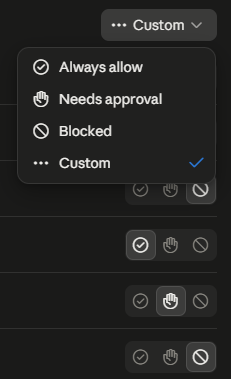
The permission list shows every tool separately, with a description of what it does. Run your eye down it and stop at the ones that send messages: some of Gmail’s tools will send mail in your name. Set those to Blocked to begin with. You lose nothing, because the draft still gets written, and you send it from Gmail yourself. If that feels too strict, leave them on Needs approval at least, so every message leaving your mailbox waits for your click.
Add Google Calendar
The calendar goes on by the same route: Connect next to Google Calendar, pick an account, read the Google consent screen.
The difference is in what the calendar connector can do. Beyond reading your appointments it also writes: it can create an event, move it, cancel it, or answer an invitation on your behalf. Keep that in mind before you ask Claude for a change. A cancelled meeting is really cancelled, and everyone invited gets an email about it from Google Calendar.
So set the permissions straight away, as you did for Gmail: click the connected calendar in Customize → Connectors and give the tools that write Needs approval or Blocked.
The same connectors in Claude Code
In Claude Code there is nothing to set up. One condition: you sign in there with the same Claude account you use in the browser. If you don’t have Claude Code on your computer yet, the installation is a lesson of its own.
Connectors belong to your account rather than to one folder on your disk, so just open a new chat in Claude Code, in whatever folder you happen to be working in.
The command for the list of connectors is:
/mcpGmail and Google Calendar will be on it, marked as coming from claude.ai. A connector attached to your account in the browser needs nothing written into Claude Code’s settings file.
The list earns its keep when a connector suddenly stops working. Its status sits next to the name: when it asks you to sign in again, pick the connector from the list and go through the Google sign-in once more.
If a connector isn’t on the list at all, look for Show unused connectors at the bottom – Claude Code folds away the ones you haven’t signed in to there yet.
Ask your first question
Now check that all of it works. In that same chat in Claude Code, ask:
What's in my calendar tomorrow?Then test the mail connection, for instance:
Find the latest message about invoices in my mailbox and sum it up for me in three sentences.The permissions you set in the browser hold here as well. At Needs approval, Claude Code asks you before every use of a tool, and mentions along the way that your organisation requires it – you’ll see that message even on an account where you work alone.
When Claude Code answers that it has no access to your mail or calendar, go back to the browser, to Customize → Connectors, and check whether the connector is switched on there. The cause doesn’t always sit on Claude’s side, so while you’re at it, check that the mailbox and the calendar themselves are behaving normally.
Limits
The first limit shows up in that test question about the invoice. Claude reads the message, but it won’t open the attachment. That an invoice was attached, it learns from the message itself; what the invoice says, it doesn’t get to read. There is an automation that solves this, and it’s the subject of the lesson on the advanced Gmail setup.
The second limit surfaces in long correspondence. In our experience, in a thread with a large number of replies Claude searches the oldest messages by default and skips the newest ones. When you ask about a thread like that, say what you expect outright: “go through every message in this thread, including the most recent ones”.
You don’t have to repeat that request in every prompt. Claude Code reads a file called CLAUDE.md at the start of every chat, so ask it to write the instruction there once. If you don’t have that file yet, start with the lesson on your first CLAUDE.md.
Add to CLAUDE.md: when searching a Gmail thread, read every message, including the newest ones.The third limit you’ll notice in a mail Claude wrote for you: the connector doesn’t add the signature you have set up in Gmail. There’s a way around that too, and it belongs to the same lesson on the advanced Gmail setup.
The connector catalogue doesn’t end with Google
Go back to the list of connectors in claude.ai for a moment and open the full catalogue.
Among other things you’ll find Google Drive there, which gives Claude access to your documents on the Drive. You set it up exactly as you set up the two above.
Microsoft 365 is there too – Outlook mail and calendar, among others. That one comes with a catch: it works with a business Microsoft account only, and a private @outlook.com address won’t connect at all.
As an exercise, look through the catalogue for one service you use daily. Even if you don’t connect it today, you’ll know whether it’s there.
For the curious: what a connector is
You don’t need this section to use connectors – everything necessary is above. But since you type /mcp in Claude Code, you may be wondering where that abbreviation comes from.
A connector is another name for an MCP server, MCP standing for Model Context Protocol. It’s an open standard for linking AI programs with data and tools that live outside them: a mailbox, a calendar, a drive, a database. Anthropic published it in November 2024, and the standard’s documentation compares it to a USB-C socket: one shared connection instead of a separate adapter per device.
One thing follows from that, and the catalogue shows it: a connector to any system can be written by whoever makes that system, without waiting for Anthropic to do it. The standard isn’t Anthropic’s property either – other AI programs and code editors build on it as well.
What to take away from this lesson
A connector is access you grant deliberately. Claude doesn’t see your mail or your calendar until you connect one. You can switch the connection off in the same place you switched it on.
Writing is writing, so set the permissions immediately. In Tool permissions every tool of a connector gets Always allow, Needs approval or Blocked. A sent mail and a cancelled meeting can’t be taken back, so block sending at the start and leave the rest on Needs approval.
You pick the Google account separately for each connector. Mail can come from a work address and the calendar from a private one, and neither has to be the account you sign in to Claude with. One connector still takes one account only.
In our experience, Claude can miss the newest messages in a thread with a large number of replies. With long correspondence, add to your prompt that you want every message in the thread read. If you come back to threads like that often, write it into CLAUDE.md once.
Connectors from the browser work in Claude Code too. All it takes is being signed in there with the same Claude account and opening a new chat, with nothing to configure. When one of them stops working, /mcp shows you whether it needs a fresh sign-in.
Tasks
- Gmail connector switched on in claude.ai
- Google consent screen read, not scrolled past
- Gmail tool permissions reviewed, sending mail set to Blocked or Needs approval
- Google Calendar connector switched on
- Calendar tool permissions reviewed, writing set to Blocked or Needs approval
- Google account chosen deliberately for each of the connectors
- The
/mcplist opened in Claude Code, both connectors visible on it - Question about tomorrow’s appointments asked in Claude Code and the answer checked against the calendar
- Question about a message in the mailbox asked and the answer checked against the mail
- One service from your daily work looked up in the connector catalogue